Setup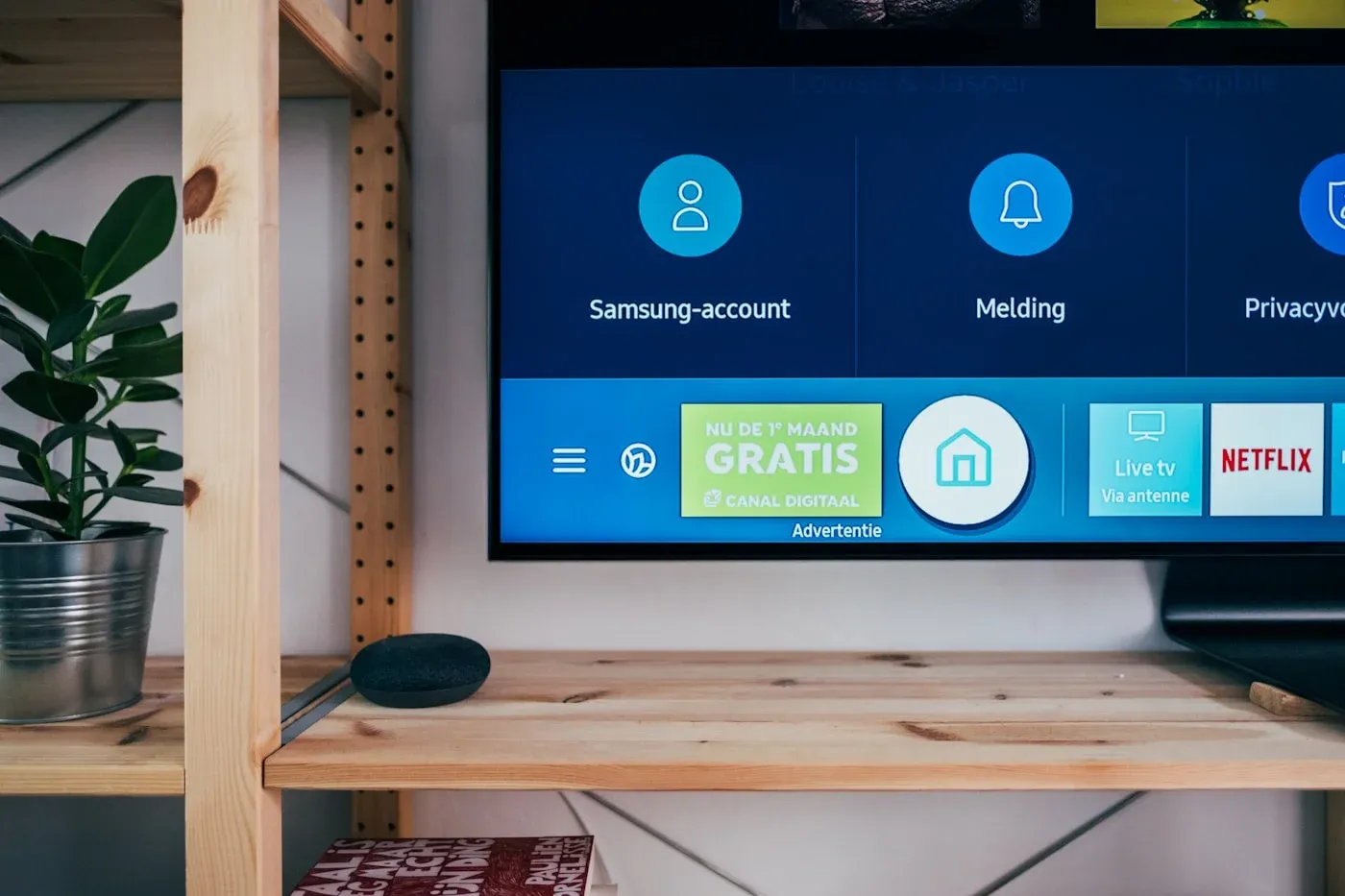
Configuring MaxConnect on your Smart TV
Get MaxConnect running on Samsung, LG and other Smart TV platforms with this step-by-step guide.
By MaxConnect
Last updated 5 min read
Before you start
MaxConnect runs on many Samsung (Tizen), LG (webOS) and Android TV based Smart TVs. Exact store availability can vary by brand and region — if your TV cannot install the app, a Fire TV Stick or Android TV box is a reliable alternative.
- A Smart TV connected to the internet
- Access to your TV’s app store
- Your MaxConnect account email and password
Step 1: Open your TV app store
- From the TV home screen, open the built-in app store (Samsung Apps, LG Content Store, Google Play, etc.)
- Use search and look for MaxConnect (or the player named in your welcome email)
Step 2: Install and open
- Select Install / Get and wait for the download to finish
- Open the app from your apps row or home screen
Step 3: Sign in
- Choose Sign in
- Enter your MaxConnect email and password (use the on-screen keyboard or a phone companion app if offered)
- Browse live TV and on-demand content
App not listed?
Some older TVs cannot install new apps. Use a streaming stick on the HDMI port and follow the Fire TV or Android TV guide instead.
Smart TV tips
- Use a wired Ethernet connection when possible
- Keep the TV software updated from Settings
- Close unused apps if the TV feels slow
- Match picture quality to your broadband speed
Looking for a shorter device checklist? See the Smart TV setup page .
Keep reading
Related guides

Ready to watch?
Choose a plan and start streaming MaxConnect today.