How to Get IPTV on a Smart TV (Samsung, LG, Android TV and More) — UK Guide 2026
A step-by-step UK guide to setting up IPTV on Samsung, LG, Android TV and Google TV — covering app installation, credential entry, platform differences, and what to do if your preferred app is not in the store.
By MaxConnect
To get IPTV on a smart TV, install a compatible IPTV player app from your TV's app store, open it, and enter your service credentials — usually an Xtream Codes server address with a username and password, or an M3U URL. The exact steps depend on whether your TV runs Samsung Tizen, LG webOS, Android TV, or Google TV.
Which Smart TV Platform Do You Have?
Smart TVs are not all the same under the surface. Four operating systems dominate the UK market, and the IPTV setup process differs meaningfully between them. Identifying your platform before you start saves considerable time.
Samsung Tizen — Found on all current Samsung smart TVs. A curated, closed ecosystem with its own app store (Samsung Smart Hub). App availability is more limited than on Android-based platforms.
LG webOS — Found on all current LG smart TVs. Also a curated ecosystem with the LG Content Store. Good selection of streaming apps, though smaller than Google Play.
Android TV — Found on older Sony, Philips, and some TCL models. Uses the Google Play Store. More open than Tizen or webOS.
Google TV — Found on newer Sony (Bravia XR and recent Bravia series), TCL, and Hisense models. Built on top of Android TV with a different home screen interface, but it uses the same Google Play Store. For IPTV purposes, Android TV and Google TV are functionally identical.
How to Get IPTV on a Samsung Smart TV
Samsung TVs run Tizen OS and use the Samsung Smart Hub as their app store. The selection of IPTV player apps available on Tizen is more limited than on Android-based platforms. The apps most consistently reported as available in the UK Samsung Smart Hub include Smart IPTV (SIPTV) and SS IPTV — both support Xtream Codes and M3U playlist formats and are long-established in the IPTV player category.
- Open Samsung Smart Hub — Press the Home button on your Samsung remote. This opens the Smart Hub launcher bar along the bottom of the screen. Navigate to the app store icon (labelled 'Apps' or shown as a grid icon depending on your Tizen version).
- Search for a compatible IPTV player app — Use the search function within the app store and search for 'Smart IPTV', 'SS IPTV', or 'IPTV' to see what is currently listed for your TV and region. Availability can vary between TV model years. [SCREENSHOT REQUIRED: Samsung Smart Hub — IPTV app search results showing available apps]
- Install and launch the app — Select the app and choose 'Install'. Once installed, open the app from your Smart Hub home screen.
- Enter your IPTV credentials — When the app opens, navigate to its settings or login screen. Enter the credentials provided by your IPTV service. This is typically an Xtream Codes server URL, username and password — or an M3U URL. [SCREENSHOT REQUIRED: Xtream Codes login screen — server URL, username, password fields]
- Confirm and load your channel list — Save the credentials and allow the app to load your playlist. This may take a few moments depending on your connection speed and the size of your channel list.
How to Get IPTV on an LG Smart TV
LG smart TVs run webOS and use the LG Content Store. The app library includes a number of IPTV player options. The apps most consistently reported as available in the UK LG Content Store include Smart IPTV (SIPTV) and SS IPTV — the same apps that appear on Samsung's store — both supporting Xtream Codes and M3U formats. Availability varies by webOS version and TV model year.
- Open the LG Content Store — Press the Home button on your LG Magic Remote. Select the LG Content Store from your home screen launcher. On some webOS versions it may appear simply as 'Apps'.
- Search for a compatible IPTV player app — Use the search function to find an IPTV player compatible with webOS — search for 'Smart IPTV', 'SS IPTV', or 'IPTV' to see what is currently listed for your model. [SCREENSHOT REQUIRED: LG Content Store — IPTV app search results showing available apps]
- Install and open the app — Select the app, choose 'Install', and wait for the installation to complete. Open the app from your LG home screen.
- Enter your IPTV credentials — Navigate to the app's settings or login screen. Enter the server URL, username and password (Xtream Codes format) or paste in your M3U URL, depending on what your provider supplies.
- Load your channel list and verify playback — Save the credentials, allow the app to retrieve your playlist, and test playback on a channel to confirm everything is working.
How to Get IPTV on an Android TV or Google TV
Android TV and Google TV both use the Google Play Store, so the process is essentially the same on both platforms. Google TV (found on newer Sony, TCL, and Hisense models) uses a different home screen interface, but once you reach the Play Store the steps are identical. The Google Play Store carries a significantly wider selection of IPTV player apps than either Samsung Smart Hub or the LG Content Store. Well-established options available on Google Play include TiviMate, IPTV Smarters Pro, and GSE Smart IPTV — all three support Xtream Codes and M3U playlist formats and are widely used for IPTV on Android-based devices. This platform is also the most open of the three — sideloading APK files is generally possible and gives you access to apps beyond the Play Store.
- Open the Google Play Store — On Android TV, select the Play Store icon from your home screen or app drawer. On Google TV, press the Search button or navigate to the Play Store from the Apps tab.
- Search for an IPTV player app — Search for 'TiviMate', 'IPTV Smarters', or 'GSE IPTV' to find established options. TiviMate is widely regarded as a polished choice for Android TV; IPTV Smarters Pro is popular for its multi-connection support. Check the current Play Store listing to confirm the app is available for your specific device. [SCREENSHOT REQUIRED: Android TV Google Play Store — IPTV player search results showing TiviMate, IPTV Smarters Pro, and GSE Smart IPTV]
- Install and open the app — Select the app, tap 'Install', and open it once installed.
- Enter your IPTV credentials — Navigate to the app's add playlist or login screen. Enter your Xtream Codes details (server URL, username, password) or your M3U URL as provided by your service. [SCREENSHOT REQUIRED: M3U URL entry screen inside IPTV player app]
- Load your playlist and test playback — Confirm the credentials, allow the app to build your channel list, and open a channel to test playback.
What If My TV Is Not a Smart TV?
If your television does not have a built-in smart platform — or if the smart platform it runs does not support the IPTV app you need — a streaming stick or streaming box is the simplest solution.
Plug an Amazon Fire TV Stick, a Roku device, or an Android TV box into any spare HDMI port on your television. These devices run their own operating systems and app stores, independently of your TV. You then install the IPTV player app on the streaming device rather than on the TV itself.
This approach is also commonly used as a workaround for Samsung Tizen and LG webOS TVs when a desired app is not available in the native store.
For setup instructions specific to these devices, see our guides for the Amazon Fire TV Stick and Android TV boxes.
Which App Works on My Smart TV? — Compatibility Overview
| App Name | Samsung Tizen (Smart Hub) | LG webOS (Content Store) | Android TV / Google TV (Google Play) |
|---|---|---|---|
| Smart IPTV (SIPTV) | |||
| SS IPTV | |||
| TiviMate | Not available (Tizen not supported) | Not available (webOS not supported) | |
| IPTV Smarters Pro | |||
| GSE Smart IPTV |
How to Activate IPTV on a Smart TV — Entering Your Credentials
Once your IPTV player app is installed, the next step is connecting it to your subscription. Most IPTV services provide credentials in one of three formats. Understanding which type you have makes the entry process straightforward.
- Identify your credential type — Check the welcome email or account area from your IPTV provider. Credentials typically come in one of three forms: Xtream Codes — a server URL (for example, a web address on a specific port), a username, and a password. This is one of the most common formats. M3U URL — a single playlist link that ends in .m3u or .m3u8. Some apps call this 'Add playlist via URL' or similar. Portal / MAG address — a URL entered into a MAG-style app or device portal. Less common on standard smart TVs.
- Open the app's add-playlist or login screen — In most IPTV player apps, there is an option on the first launch screen or within Settings labelled 'Add playlist', 'Add source', or 'Xtream Codes login'. Select the option that matches your credential type.
- Enter Xtream Codes credentials — If you have Xtream Codes credentials, enter the server URL in the 'Server' or 'Host' field, then your username and password in the respective fields. Tap 'Connect', 'Login', or 'OK'. [SCREENSHOT REQUIRED: Xtream Codes login screen — server URL, username, password fields]
- Enter an M3U URL — If you have an M3U URL, select the 'Add via URL' or 'M3U playlist' option and paste the full URL into the field provided. Give the playlist a name if prompted, then confirm. [SCREENSHOT REQUIRED: M3U URL entry screen inside IPTV player app]
- Wait for the playlist to load — The app will contact the server and retrieve your channel list. On a fast connection this typically takes between a few seconds and about a minute, depending on playlist size. Once loaded, your channels and categories should appear in the app's main interface.
- Test playback — Open a channel and verify that video and audio play correctly. If the stream does not load, check that the credentials were entered accurately — no extra spaces, correct capitalisation — and that your internet connection is active.
Is IPTV Legal in the UK?
IPTV as a technology is entirely legal. It is simply a method of delivering television content over an internet connection rather than through a traditional aerial, satellite dish, or cable connection.
Whether a specific IPTV service is legal depends on whether the provider holds the appropriate licences to broadcast or distribute the content it delivers. Providers that have negotiated the necessary rights with content owners — broadcasters, sports rights holders, film studios — operate legally. Providers that stream content without those rights agreements are operating outside UK copyright law, regardless of whether the interface looks polished or the price appears competitive.
In the UK, Ofcom regulates broadcasting and works with the Intellectual Property Office and Trading Standards on enforcement related to unlicensed streaming.
When choosing a service, looking for clear information about content licensing, a verifiable business identity, and transparent terms of service are reasonable indicators of a legitimate provider.
If you are looking for a licensed IPTV service in the UK, MaxConnect is designed to operate as a legitimate, compliant option.
Is There a Free IPTV App for Smart TV?
Free IPTV player apps are widely available — these are software applications that can play IPTV streams but do not include any content or subscription in themselves. Think of them as a media player rather than a TV service. Apps of this type are available on Google Play and, in some cases, in the Samsung and LG app stores. They are legal to download and use.
Separately, there are free IPTV content services — platforms that provide streams at no charge. These vary considerably. Some are legitimate catch-up services or free ad-supported television platforms. Others provide unlicensed streams, meaning they distribute content without holding the appropriate rights. Using an unlicensed stream carries legal risks for the user and typically comes with significant quality and reliability drawbacks — streams are frequently unstable, removed without notice, or replaced with degraded alternatives.
The practical distinction to understand: a free IPTV player app is a tool. What you play through it — and whether that content is lawfully distributed — is a separate question.
Frequently Asked Questions
Install a compatible IPTV player app from your TV's app store — Samsung Smart Hub, LG Content Store, or Google Play depending on your platform. On Samsung and LG TVs, look for apps such as Smart IPTV or SS IPTV. On Android TV and Google TV, TiviMate, IPTV Smarters Pro, and GSE Smart IPTV are widely available options. Open the app and navigate to its login or 'Add playlist' screen. Enter the credentials supplied by your IPTV provider: typically an Xtream Codes server URL with a username and password, or an M3U URL. Save the credentials and allow the app to load your channel list.
FAQ
How to activate IPTV on a smart TV?
Install a compatible IPTV player app from your TV's app store — Samsung Smart Hub, LG Content Store, or Google Play depending on your platform. On Samsung and LG TVs, look for apps such as Smart IPTV or SS IPTV. On Android TV and Google TV, TiviMate, IPTV Smarters Pro, and GSE Smart IPTV are widely available options. Open the app and navigate to its login or 'Add playlist' screen. Enter the credentials supplied by your IPTV provider: typically an Xtream Codes server URL with a username and password, or an M3U URL. Save the credentials and allow the app to load your channel list.
Is IPTV legal in the UK?
IPTV as a delivery technology is legal. Whether a specific service is legal depends on whether the provider holds the rights to broadcast the content it delivers. Services that stream content without the appropriate licences are operating in breach of UK copyright law. When choosing a provider, look for transparent terms of service, clear business information, and evidence of content licensing.
Is there a free IPTV app for smart TV?
Free IPTV player apps are available on Google Play and in some TV app stores — including options such as GSE Smart IPTV. These applications play IPTV streams but do not include a content subscription. Separately, free IPTV content services exist — some are legitimate, others distribute unlicensed streams. The distinction matters: a free player app is a tool; the content played through it may or may not be legally distributed.
How do I connect my TV to IPTV?
On a smart TV, install an IPTV player app from your TV's app store and enter your service credentials. For non-smart TVs, or when the required app is unavailable on your smart TV's platform, connect a streaming device — such as an Amazon Fire TV Stick or an Android TV box — to an HDMI port on your television, then install the IPTV app on that device.
Can I get IPTV on a Samsung Smart TV?
Yes, if a compatible IPTV player app is available in the Samsung Smart Hub for your TV model and region. Apps such as Smart IPTV and SS IPTV are among the options reported as available on Tizen, though availability can vary by model year. App availability on Samsung Tizen is more limited than on Android TV overall. If your preferred app is not listed in the Smart Hub, connecting an Amazon Fire TV Stick via HDMI is the recommended practical alternative.
Can I get IPTV on an LG Smart TV?
Yes, using a compatible IPTV player app from the LG Content Store. Apps such as Smart IPTV and SS IPTV are among the options reported as available on webOS. If the specific app you want is unavailable, LG's developer mode (accessible via webostv.developer.lge.com) allows app sideloading for technical users, or you can connect a streaming stick via HDMI as a simpler workaround.
What is the difference between Android TV and Google TV for IPTV?
Both platforms use the Google Play Store, so IPTV app availability is the same on both — including TiviMate, IPTV Smarters Pro, and GSE Smart IPTV. Google TV is a newer interface layer built on top of Android TV — the home screen layout and content recommendations are different, but app installation and credential entry work identically. For practical IPTV setup purposes, you can treat the two platforms as equivalent.
What internet speed do I need for IPTV on a smart TV?
As a general reference: SD streams typically require around 3–5 Mbps; HD (720p) around 5–8 Mbps; Full HD (1080p) around 10–15 Mbps; and 4K Ultra HD around 25 Mbps or above depending on the codec used. A wired Ethernet connection is recommended for the most stable experience. Total household bandwidth usage across all connected devices also affects performance — not just the TV's connection in isolation.
Why is IPTV buffering on my smart TV?
Buffering is most commonly caused by insufficient internet speed, a weak Wi-Fi signal, or temporary high load on the IPTV provider's servers. Start by testing your connection speed and switching to a wired Ethernet connection if possible. Restart your router and re-test. If streams play without issue on a mobile data connection, the problem may be related to your broadband connection or ISP-level DNS filtering. Contact your provider if the issue persists.
Can I sideload an IPTV app on a Samsung or LG smart TV?
Sideloading on Samsung Tizen and LG webOS is significantly more restricted than on Android TV. Samsung provides a developer mode accessible via developer.samsung.com that permits installation of developer-signed apps, but this is a technical process not suited to most users. LG webOS offers a similar developer mode via webostv.developer.lge.com that allows IPK file installation using command-line tools. For most users, connecting an Amazon Fire TV Stick or Android TV box to an HDMI port is the more reliable alternative.
Related guides
 Setup
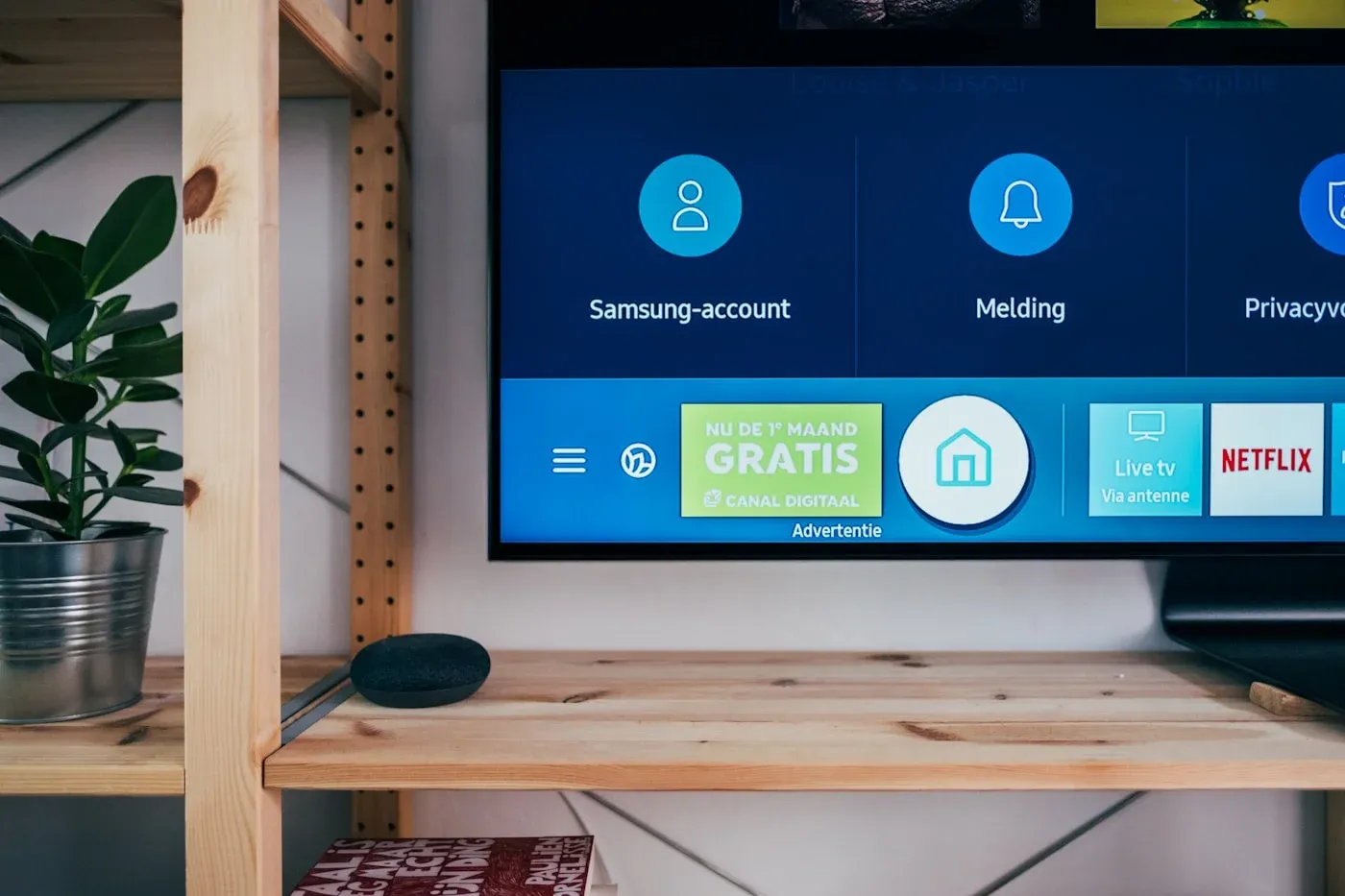
SetupConfiguring MaxConnect on your Smart TV
Get MaxConnect running on Samsung, LG and other Smart TV platforms with this step-by-step guide.
 Troubleshooting
Improve streaming quality on any connection
Tune your network, device and settings for the sharpest possible picture.
 Account
Managing your MaxConnect account and billing
How to update payment details, change plans and manage devices from your account.
Ready to watch?
Choose a plan and start streaming MaxConnect today.