How to Install IPTV on a Firestick | Step-by-Step Setup Guide
A complete step-by-step guide for UK users on how to install an IPTV player app on an Amazon Fire TV Stick, configure it with your subscription credentials, and troubleshoot common problems after setup.
By MaxConnect
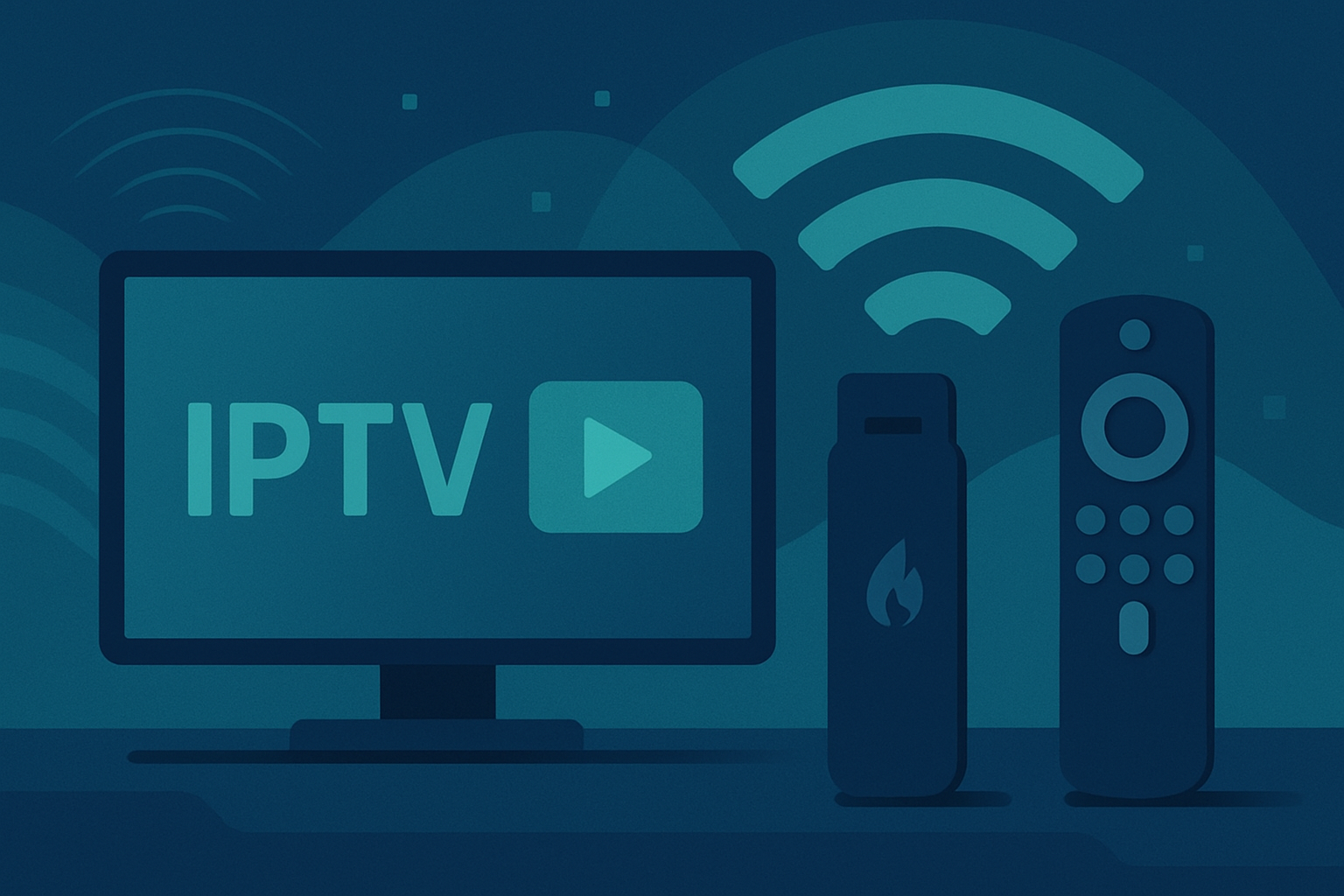
To install IPTV on a Firestick you need two things: a compatible IPTV player app and an active IPTV subscription. Apps such as IPTV Smarters Pro can be installed via the Downloader app by first enabling Apps from Unknown Sources in your Fire TV settings. Once installed, open the app and enter your M3U URL or Xtream Codes login details supplied by your IPTV provider to load your channel list and start watching.
Which IPTV app should you use on a Firestick?
Several IPTV player apps are used regularly on Fire TV. They fall into two groups: those you can install directly from the Amazon Appstore without any extra steps, and those that require sideloading via the Downloader app. The right choice depends on which features matter most to you — EPG (Electronic Programme Guide) quality, multi-stream support, interface preference, and cost all vary between apps.
Apps available directly from the Amazon Appstore
Some IPTV player apps are listed in the Amazon Appstore and can be installed like any standard Fire TV app — search, select, and install, no extra steps needed. GSE Smart IPTV is one example commonly cited as available through the Appstore. If an app is available in the Appstore, you do not need to enable Apps from Unknown Sources or use the Downloader app to install it.
Apps that require sideloading
Some popular IPTV player apps are not listed in the Amazon Appstore and must be installed by sideloading — that is, downloading an APK file directly onto your Firestick using the Downloader app. IPTV Smarters Pro and TiviMate are frequently cited as apps that require this method on Fire TV. Sideloading is a legitimate feature of Fire TV and does not modify or damage your device, but you should only download APK files from trusted, well-known sources — installing APKs from unverified sources carries security risk.
Quick comparison of popular IPTV player apps for Firestick
| App | Amazon Appstore | Sideload required | EPG support | Multi-stream support | Free or paid |
|---|---|---|---|---|---|
| IPTV Smarters Pro | To be confirmed | To be confirmed | To be confirmed | To be confirmed | To be confirmed |
| TiviMate | To be confirmed | To be confirmed | To be confirmed | To be confirmed | To be confirmed |
| GSE Smart IPTV | To be confirmed | To be confirmed | To be confirmed | To be confirmed | To be confirmed |
| TiviMate Premium | To be confirmed | To be confirmed | To be confirmed | To be confirmed | To be confirmed |
| Perfect Player | To be confirmed | To be confirmed | To be confirmed | To be confirmed | To be confirmed |
Is Amazon blocking IPTV on Firestick?
Amazon does not block sideloading on Fire TV. The Downloader app — the standard tool used to install APK files on a Firestick — is available in the Amazon Appstore and is developed by the well-known Fire TV community site AFTVnews. Enabling Apps from Unknown Sources and using Downloader to install third-party APKs is a documented feature of Fire TV, not a workaround.
Some individual IPTV player apps may not be listed in the Amazon Appstore, either because the developer chose not to submit them or because Amazon removed a specific listing at a specific point in time. This is different from Amazon blocking IPTV broadly. The sideloading pathway via Downloader remains intact.
This guide covers only the technical installation process. Whether a specific IPTV service and its content are lawful depends entirely on the licensing arrangements of that service — not on the installation method used.
How to install IPTV on a Firestick using the Downloader app
The following steps cover the sideloading method, which is the most common installation route for IPTV player apps on Fire TV. If your chosen app is available directly in the Amazon Appstore, skip to step 5.
- Enable Apps from Unknown Sources — On your Firestick remote, press the Home button and navigate to Settings. Select My Fire TV (on some older models this may appear as Device). Open Developer Options. Toggle Apps from Unknown Sources to On. A warning prompt will appear — select Turn On to confirm. [SCREENSHOT REQUIRED: Fire TV Settings — My Fire TV — Developer Options — Apps from Unknown Sources toggle]
- Install the Downloader app from the Amazon Appstore — From the Fire TV home screen, open the Search function and search for Downloader. Select the Downloader app by AFTVnews from the results and install it. The app is free. [SCREENSHOT REQUIRED: Amazon Appstore search showing Downloader app by AFTVnews]
- Open Downloader and enter the APK URL or shortcode — Launch the Downloader app. In the URL field, enter the direct download address or numeric shortcode for your chosen IPTV player app. Your IPTV provider may also be able to supply the correct URL for a compatible app. [SCREENSHOT REQUIRED: Downloader app — URL or code entry screen]
- Download and install the IPTV player APK — Downloader will fetch the APK file and display an install prompt once the download is complete. Select Install when prompted. After installation, you will be given the option to open the app immediately or return to Downloader. You can also delete the APK file after installation is complete — the installed app will remain on your device. [SCREENSHOT REQUIRED: Downloader — Install APK confirmation screen]
- Open the IPTV player app and enter your credentials — Open your newly installed IPTV player. At the setup screen, you will be asked to add a playlist or account. Your provider will have given you one of two credential formats: — M3U URL: A single web link (beginning http:// or https://) that points to your channel playlist. Paste this into the M3U playlist or URL field. — Xtream Codes API: A server address, username, and password. Select the Xtream Codes or Xtream API login option and enter all three values exactly as supplied by your provider. If you are unsure which format your provider uses, check your welcome email or contact their support team. Both formats are equally valid — the choice is determined by your provider, not your app. [SCREENSHOT REQUIRED: IPTV player app — add playlist or Xtream Codes login screen]
- Load your channel list and confirm playback — Once your credentials are saved, the app will fetch your channel list from your provider's servers. This may take a few seconds to a couple of minutes on first load, depending on the size of your playlist. Your EPG (Electronic Programme Guide) may take additional time to load fully — this is normal and typically completes within a few minutes of the app being open. Select any channel and confirm that the stream plays back correctly. If playback is working, your setup is complete. [SCREENSHOT REQUIRED: IPTV player app — channel list after successful setup]
Does this work on all Fire TV Stick models?
The sideloading process described above is supported across current Amazon Fire TV Stick models, including the Fire Stick Lite, the Fire Stick 4K, and the Fire Stick 4K Max. All three models run Fire OS and support the Developer Options toggle and the Downloader app.
The primary practical difference between models is hardware performance. The 4K Max has more RAM and a faster processor, which can contribute to smoother app performance and faster channel list loading. The Fire Stick Lite is capable of running IPTV player apps but has lower hardware specifications.
If you want full technical detail on each device, see our Amazon Fire TV Stick device page.
What internet speed do you need for IPTV on a Firestick?
Your internet connection quality directly affects IPTV playback reliability. The required speed depends on the quality of the streams you intend to watch. Specific minimum recommended download speeds for SD, HD, and 4K IPTV streams will be inserted into this section once verified from reputable technical streaming documentation — the absence of figures here is intentional and not an error.
As a general principle accepted across streaming documentation:
— SD (standard definition) streams require the least bandwidth and work on lower-speed connections.
— HD (high definition, typically 1080p) streams require a meaningfully higher consistent download speed.
— 4K streams require the highest bandwidth and the most stable connection.
If your connection meets the requirements on paper but you are still experiencing buffering, the issue is often signal quality rather than headline speed. A weak Wi-Fi signal between your router and your Firestick creates packet loss and instability even when a speed test looks acceptable.
For the most reliable IPTV playback on a Firestick, connect via a wired Ethernet adapter if your router placement makes this practical. Compatible Ethernet adapters for Fire TV plug into the Micro-USB or USB-C port on the device. If staying on Wi-Fi, position your router as close to the Firestick as possible and minimise physical obstructions.
Don't have an IPTV provider yet?
If you have your Firestick ready and the player app installed but you still need an IPTV subscription to connect it to, MaxConnect is a straightforward option to consider. View what's available and find a plan that suits you.
Frequently asked questions
To get IPTV on a Firestick you need two things: a compatible IPTV player app installed on the device, and an active IPTV subscription with the login credentials your provider supplies. The most common installation method is to use the Downloader app — available from the Amazon Appstore — to sideload the IPTV player APK onto your Firestick after enabling Apps from Unknown Sources in Developer Options. Once the app is installed, you enter your M3U URL or Xtream Codes details to load your channel list.
Related guides and pages
FAQ
How do you get IPTV on a Firestick?
To get IPTV on a Firestick you need two things: a compatible IPTV player app installed on the device, and an active IPTV subscription with the login credentials your provider supplies. The most common installation method is to use the Downloader app — available from the Amazon Appstore — to sideload the IPTV player APK onto your Firestick after enabling Apps from Unknown Sources in Developer Options. Once the app is installed, you enter your M3U URL or Xtream Codes details to load your channel list.
Do I need an IPTV subscription before I install the app?
You can install the IPTV player app at any point, but the app will not display any channels or content until you enter valid IPTV subscription credentials. Those credentials — either an M3U URL or Xtream Codes login details — come from your IPTV service provider. It makes sense to have your subscription and credentials ready before you open the app for the first time, so you can complete the setup in one session.
Is Amazon blocking IPTV on Firestick?
Amazon does not block sideloading on Fire TV. The Downloader app — the standard method for installing APKs on a Firestick — is available in the Amazon Appstore and is a documented, supported feature of Fire TV. Some individual IPTV player apps may not be listed in the Appstore, but the sideloading pathway itself remains available. This guide covers the technical installation process only and does not make any determination about the legality of specific IPTV services or content.
Which IPTV app is best for Firestick?
There is no single app that is best for everyone — the right choice depends on your priorities. TiviMate is widely regarded by users for its interface and EPG quality, though this reputation is based on community consensus rather than independently verified benchmarks . IPTV Smarters Pro is a common starting point for users new to IPTV. GSE Smart IPTV supports a wide range of formats. The most important factor is ensuring the app supports the credential format your provider uses — M3U URL or Xtream Codes.
What is an M3U URL and do I need one?
An M3U URL is a playlist link provided by your IPTV service. It points to a hosted file that lists your channels and stream addresses, which your IPTV player app uses to load and play content. Not all providers use M3U URLs — some use Xtream Codes instead, which is a login system using a server address, username, and password. Your provider will tell you which format they supply. You do not choose between them — your provider determines which type of credentials you receive.
What is the Downloader app and why do I need it?
Downloader is a free app available in the Amazon Appstore, developed by the Fire TV community site AFTVnews. It allows you to enter a web address or shortcode and download files directly onto your Firestick — including APK files for IPTV player apps that are not listed in the Amazon Appstore. It is the standard method for sideloading apps on Fire TV and does not require any modification to your device.
How do I enable Apps from Unknown Sources on a Fire TV Stick?
Go to Settings on your Fire TV, select My Fire TV (or Device on some older models), then open Developer Options. Find the Apps from Unknown Sources toggle and switch it to On. Confirm the warning prompt that appears. The exact wording of some menu items may differ slightly depending on your Fire TV model and Fire OS version.
What internet speed do I need to watch IPTV on a Firestick?
The required internet speed depends on the stream quality you intend to watch. SD streams require the least bandwidth, HD requires more, and 4K streams require the highest consistent download speed and the most stable connection. Specific minimum recommended figures for each quality tier will be added once verified from reputable technical documentation — do not treat the absence of numbers here as an oversight. If your headline speed appears sufficient but playback is unstable, the issue is often Wi-Fi signal quality rather than raw speed — a wired Ethernet adapter connection removes that variable.
Why is my IPTV buffering on Firestick?
The three most common causes of IPTV buffering on a Firestick are insufficient download bandwidth, a weak Wi-Fi signal between your router and your device, and high load on your IPTV provider's servers. Start by running a speed test to confirm your actual connection speed. If the speed is adequate, try moving your router closer to the Firestick or connecting via a wired Ethernet adapter. If buffering only affects certain channels, the issue is more likely to be server-side — try a different channel or wait and retry at a quieter time.
Does IPTV work on the Fire Stick Lite and Fire Stick 4K Max?
Yes, the installation process described in this guide works across Fire Stick Lite, Fire Stick 4K, and Fire Stick 4K Max. All models support the Developer Options toggle and the Downloader sideloading method. The main practical difference is hardware performance — the 4K Max has more processing power and memory, which can result in snappier app performance and faster channel list loading.
Can I install more than one IPTV app on my Firestick?
Yes. Multiple IPTV player apps can be installed on a single Firestick simultaneously, subject to the available internal storage on your device. Each app is configured independently and stores its own credentials and settings. There is no conflict between apps running on the same device, though you should be mindful of storage capacity, particularly on the Fire Stick Lite which has lower storage than the 4K models.
What should I do if my IPTV app crashes on my Firestick?
First, check your Firestick's available storage — critically low storage is a frequent cause of app instability. Go to Settings — Applications — Manage Installed Applications, select the app, and choose Clear Cache, then relaunch. If the app continues to crash, uninstall it and reinstall using the Downloader method, making sure you are downloading the most current version of the APK. Outdated APK versions can cause crashes, particularly after Fire OS updates.
Why is my EPG not showing on my Firestick IPTV app?
An empty or missing EPG is usually caused by one of two things: the EPG URL has not been entered in the app's settings, or the EPG data is still loading. Check your IPTV player's settings and confirm that an EPG source URL has been added — your provider may supply this separately from your M3U URL or Xtream Codes login. If the URL is already configured, allow several minutes for the initial data load to complete, particularly on first use. Large EPG datasets can take time to fetch and process.
Is it legal to use IPTV on a Firestick in the UK?
Using an IPTV player app on a Firestick is not inherently unlawful — the app is simply software. Whether any particular IPTV service is lawful depends entirely on the licensing arrangements of that service and the content it distributes, not on the installation method or device used. If you are using a legitimate, licensed IPTV service, watching content through a Firestick is no different from any other device. This guide does not make legal determinations about any specific service. If you have concerns about a particular provider, use a provider you are confident holds the appropriate licences for the content they offer.
Related guides
 Setup
SetupConfiguring MaxConnect on your Smart TV
Get MaxConnect running on Samsung, LG and other Smart TV platforms with this step-by-step guide.
 Troubleshooting
Improve streaming quality on any connection
Tune your network, device and settings for the sharpest possible picture.
 Account
Managing your MaxConnect account and billing
How to update payment details, change plans and manage devices from your account.
Ready to watch?
Choose a plan and start streaming MaxConnect today.