IPTV on PS5: Every Working Method Explained (2026)
PS5 has no native IPTV app and cannot sideload external apps. This guide explains every realistic workaround for UK users — browser playback, Plex, web portals, and companion devices — with honest trade-offs for each.
By MaxConnect

Quick Answer
PS5 has no dedicated IPTV app on the PlayStation Store and cannot sideload apps from outside it. You can still access IPTV on PS5 through three workarounds: the built-in web browser, the Plex media server app, or a companion streaming device connected to the same TV. Each method carries meaningful trade-offs in complexity, reliability, and picture quality.
The PS5 is one of the most capable entertainment devices in a UK living room — yet IPTV is a genuine blind spot. Unlike Android TV boxes or Amazon Fire TV devices, the PS5 gives you no straightforward path to install a third-party IPTV player. That does not mean it is impossible, but it does mean working around the platform's restrictions.
This guide covers exactly what UK PS5 owners can realistically do: what works in 2026, what the limitations are, and — for anyone who finds the workarounds more trouble than they are worth — what the simpler alternative looks like. UK-specific context, including the native live TV apps already on your PS5, is included throughout.
Can I Watch IPTV on My PlayStation?
Technically yes, but not natively. The PlayStation Store does not carry dedicated IPTV player apps — there is no equivalent of IPTV Smarters, TiviMate, or similar apps that you would find on Android TV or Fire TV. This is not a temporary gap; the PS5 platform does not categorise IPTV players as a supported app type in the way open Android-based platforms do.
More importantly, unlike Android TV devices, the PS5 does not support APK sideloading through any mainstream user-accessible method. You cannot download an IPTV app from outside the PlayStation Store and install it. Some jailbreak methods have historically existed for specific older firmware versions, but these are not a realistic option for typical UK users on current firmware — they carry significant risk, void any warranty, and are beyond the scope of this guide.
For most UK PS5 owners, the realistic options are the three workarounds this guide covers: the PS5 web browser, the Plex app, and a companion streaming device.
Can I Watch Live TV on My PS5?
Yes — and this is worth clarifying before going further. If your goal is UK free-to-air live TV and catch-up, you may already have what you need. PS5 supports official apps from UK broadcasters through the PlayStation Store, including BBC iPlayer, ITVX, and Channel 4. These provide legitimate access to a large portion of UK live and on-demand television with no workarounds required.
[SCREENSHOT REQUIRED: PS5 home screen showing BBC iPlayer and ITVX app icons — to illustrate native UK live TV app availability]
IPTV refers to something different: third-party subscription services that deliver live channels and on-demand content over the internet, beyond the official UK broadcaster apps. If that is what you are looking for — international channels, sports packages, or a wider channel lineup — the workarounds in this guide are the available paths on PS5.
PS5 IPTV Methods at a Glance
| Method | Difficulty | Extra Hardware Needed | Video Quality Ceiling | Reliability | Verdict |
|---|---|---|---|---|---|
| PS5 Web Browser | Low | None | Simple to try; codec and stability limitations apply | ||
| Plex Media Server | High | PC or NAS on same network | Capable but requires significant setup and ongoing server management | ||
| Web-Based IPTV Portal | Low-Medium | None | Provider-dependent; not all services offer a usable browser portal | ||
| Companion Streaming Device | Low | Fire TV Stick or Android TV box | High — native app support, no browser limitations | Most reliable option; small additional cost for dedicated device |
Method 1: Using the PS5 Web Browser
The PS5 has a built-in web browser, accessible via the PlayStation Store or by navigating to a URL through the console's user menu. Some IPTV services provide a web player that can be opened in this browser, and certain stream URLs can be entered directly. Here is how to attempt it — along with the key limitations.
[SCREENSHOT REQUIRED: PS5 web browser open showing a web-based IPTV portal URL in the address bar]
- Access the PS5 web browser — On PS5, the web browser is accessible by selecting 'User's Guide' under Settings, or through certain PS Store links. Navigate to the browser and open a new tab.
- Navigate to your IPTV provider's web portal — If your IPTV service provides a browser-based web player, enter that URL in the PS5 browser address bar. Not all IPTV providers offer a web portal — check with your service directly.
- Alternatively, attempt direct stream URL playback — Some users attempt to enter an M3U8 stream URL directly into the browser address bar. Whether this works depends on the stream format and the PS5 browser's codec support. HLS stream compatibility in the PS5 browser is not fully documented by Sony.
- Adjust stream quality settings — If your provider's web player allows quality selection, choose a lower resolution first to test stability. Higher bitrate streams are more likely to expose codec or bandwidth limitations in the browser environment.
- Use a wired connection where possible — Connect your PS5 via Ethernet rather than Wi-Fi to reduce buffering risk.
Browser Method Limitations
The PS5 web browser has meaningful restrictions for IPTV use: codec support is limited and not fully documented by Sony; background playback is not available; controller navigation on some web player interfaces can be awkward; and not all stream formats will play back reliably. This method is worth trying if you want a no-cost quick test, but it is not a robust long-term IPTV solution.
Method 2: Watching IPTV on PS5 via Plex
Plex is a media server platform with a PS5 app available on the PlayStation Store. If you run Plex Media Server on a PC or NAS on your home network, the PS5 can act as a Plex client — potentially including access to live TV sources configured on the server. This is the most capable browser-free method, but also the most complex to set up.
[SCREENSHOT REQUIRED: Plex app on PS5 PS Store listing showing availability in UK storefront]
- Install the Plex app on your PS5 — Search for 'Plex' in the UK PlayStation Store and install the free Plex app.
- Set up Plex Media Server on a PC or NAS — On a Windows, Mac, or Linux computer (or a compatible NAS device) connected to the same home network as your PS5, download and install Plex Media Server from the Plex website. This machine must remain on whenever you want to stream.
- Create a Plex account and sign in — Create a free Plex account at plex.tv. Sign in on both your server machine and the PS5 Plex app using the same account.
- Subscribe to Plex Pass for live TV functionality — Live TV and DVR functionality in Plex — which includes the ability to add IPTV sources — requires a Plex Pass subscription.
- Add your IPTV source to Plex Media Server — Within Plex Media Server settings, navigate to the Live TV and DVR section and add your IPTV service as an M3U source if supported.
- Open the Live TV section in the PS5 Plex app — Once the server is configured and channels are populated, open the Plex app on your PS5 and navigate to Live TV to browse and play channels.
Plex Method Limitations
Plex requires a permanently available server machine on your home network — a spare PC, laptop, or NAS. Transcoding live streams places a meaningful processing load on that machine; underpowered hardware may struggle with HD streams. Plex Pass carries an ongoing cost. . This method is well-suited to technically confident users who already run or plan to run a home media server — it is not a simple plug-and-play solution.
Method 3: Web Based IPTV Portals on PS5
Some IPTV services provide a dedicated web portal — a browser-accessible interface that does not require any app installation. If your provider offers one, it can be opened directly in the PS5 browser. This approach is a variation of the browser method but is worth treating separately because the experience depends entirely on whether your specific provider has built a compatible web player.
- Check whether your IPTV provider offers a web portal — Log in to your provider's website and look for a 'Web Player', 'Watch Online', or similar option. Not all providers offer this — it is provider-dependent, not a universal IPTV feature.
- Open the web portal in the PS5 browser — Access the PS5 browser (see Method 1, Step 1) and navigate to your provider's web portal URL. Sign in with your IPTV service credentials.
- Test channel playback and assess compatibility — Browse to a channel and attempt playback. If the portal uses HTML5 video with HLS delivery, playback may work. Flash-based or proprietary plugin-dependent portals will not function.
- Adjust quality settings if available — Use any quality selector within the web portal to reduce bitrate if playback is unstable. This mirrors the browser method advice — lower bitrates are less likely to encounter codec limitations.
Web Portal Compatibility Note
Whether a web-based IPTV portal works on the PS5 browser depends on how that specific portal was built. If your provider's portal functions on a standard PC browser using HTML5, there is a reasonable chance it will work on PS5 — but this is not guaranteed. If it does not load or play back correctly, the companion device method below is the more reliable path.
Method 4: Use a Dedicated Streaming Device on the Same TV
If the workarounds above feel like more complexity than the result is worth, there is a straightforward alternative: plug a dedicated streaming device into a spare HDMI port on the same TV as your PS5.
A device such as an Amazon Fire TV Stick or an Android TV box supports native IPTV player apps from their respective app stores. There are no workarounds, no server software, and no codec compatibility questions — you install the IPTV app you want, enter your subscription credentials, and watch.
For anyone who already owns a PS5 for gaming, adding a streaming stick to a spare HDMI input is a low-cost decision that separates gaming and IPTV into their optimal environments. Switch inputs when you want to watch — your PS5 remains unchanged. The streaming device handles IPTV reliably; the PS5 handles gaming without compromise.
If you are considering the MaxConnect IPTV service, pairing it with a dedicated streaming device is the path that will deliver the most consistent experience.
What Devices Can You Install IPTV On?
To put the PS5 situation in context, here are the device categories that support IPTV apps natively — without workarounds:
- Android TV boxes — open Android TV platform with access to IPTV player apps via Google Play or sideloading. See the Android TV box page for setup guidance.
- Amazon Fire TV devices — the Amazon Fire TV Stick and Fire TV Cube support IPTV apps via the Amazon Appstore.
- Apple TV — IPTV player apps are available on tvOS via the App Store.
- Smart TVs — TVs running Android TV or Google TV natively support IPTV apps. Tizen-based (Samsung) and webOS-based (LG) support varies by app and model.
- Windows and Mac computers — desktop IPTV players such as VLC support M3U playlist playback.
- Smartphones and tablets — Android and iOS both support dedicated IPTV apps via their respective app stores.
PS5 does not appear in this list for native support. For a broader overview of compatible streaming devices, the MaxConnect device hub covers the main options with setup guidance.
Can You Watch TV Through PS5?
Yes. The PS5 supports a range of official streaming apps that cover a large portion of what most UK viewers watch. Major SVOD services and UK broadcaster catch-up and live apps are available through the PlayStation Store. For the specific subset of TV content delivered via IPTV subscription services, the three workarounds covered in this guide — browser, Plex, and companion device — represent the available options on PS5.
A Note on Legal IPTV in the UK
Legal IPTV services are legitimate subscription platforms that hold the appropriate rights to the content they distribute — in the same way a traditional broadcaster or satellite provider does. Unlicensed IPTV services — often marketed cheaply with claims of thousands of channels — operate without content rights. For users in the UK, these services carry both legal risk and practical risk: streams from unlicensed sources tend to be less stable, particularly during high-demand events.
Importantly, the method you use to access IPTV on your PS5 — browser, Plex, or companion device — does not change the legal status of the service itself. A legal service accessed through a PS5 browser is legal. An unlicensed service accessed through a dedicated streaming device is still unlicensed. The device or method is not what determines compliance — the service is.
Frequently Asked Questions
PS5 does not support native IPTV apps from the PlayStation Store and cannot sideload external apps. IPTV is accessible via three workarounds: the PS5 web browser, the Plex app (with a Plex Media Server running on your home network), or a companion streaming device connected to the same TV.
Summary and Next Steps
Getting IPTV working on a PS5 is possible, but none of the routes are without friction. The browser method is the quickest to try but carries the most codec and stability uncertainty. Plex is the most capable browser-free option but requires a home media server and a Plex Pass subscription. Web portals sit between the two — worth testing if your provider supports one, but equally dependent on browser compatibility.
If you want IPTV on your TV without the complexity, the simplest path is a dedicated streaming device — an Amazon Fire TV Stick or an Android TV box plugged into a spare HDMI port gives you native app support, reliable playback, and no workarounds. Browse all compatible streaming devices or find out more about the MaxConnect IPTV service to get started.
FAQ
Can I watch IPTV on my PlayStation?
PS5 does not support native IPTV apps from the PlayStation Store and cannot sideload external apps. IPTV is accessible via three workarounds: the PS5 web browser, the Plex app (with a Plex Media Server running on your home network), or a companion streaming device connected to the same TV.
Is there an IPTV app on the PS5 PlayStation Store?
As of the research date for this guide, the UK PlayStation Store does not carry dedicated IPTV player apps of the type available on Android TV or Fire TV platforms.
Can I watch live TV on my PS5?
Yes. UK live TV apps including BBC iPlayer, ITVX, and Channel 4 are available on PS5 via the PlayStation Store and provide access to UK free-to-air live and on-demand content without any workaround. For IPTV subscription services beyond these official apps, the workaround methods in this guide are required.
Can you watch TV through PS5?
Yes. PS5 supports major UK streaming apps natively, including official broadcaster apps and major SVOD platforms. For IPTV subscription streams specifically, access requires one of the workaround methods — browser playback, Plex, or a companion streaming device.
What devices can you install IPTV on?
IPTV apps can be installed natively on Android TV boxes, Amazon Fire TV devices (including the Fire TV Stick), Apple TV via the tvOS App Store, compatible Smart TVs, and Windows or Mac computers via desktop media players. Smartphones and tablets running Android or iOS also support IPTV apps. PS5 requires workarounds rather than native app installation.
Does PS5 support M3U playlists?
The PS5 does not have a dedicated media player that accepts M3U playlist files in the way an Android TV device or desktop player does. M3U8 stream URLs may be openable via the PS5 web browser depending on the stream format and codec, but this is not officially documented and behaviour may vary.
Can I use Plex to watch IPTV on PS5?
Plex is available on the PS5 PlayStation Store and can act as an IPTV client when connected to a Plex Media Server running on a PC or NAS on the same network. Live TV and IPTV source functionality requires a Plex Pass subscription. This is a capable but complex setup — not a quick-start solution.
Do I need a VPN to watch IPTV on PS5?
No. A VPN is not a prerequisite for accessing IPTV through the PS5 browser or Plex. Whether a VPN is appropriate depends on the specific service you are accessing and your personal privacy preferences — not on the PS5 setup method itself. Do not treat VPN as a mandatory step for PS5 IPTV access.
What is the best way to watch IPTV on a TV if PS5 workarounds are too complex?
A dedicated streaming device — such as an Amazon Fire TV Stick or an Android TV box — provides native IPTV app support without workarounds. These devices support IPTV player apps from their respective app stores, typically deliver more stable playback than browser-based PS5 methods, and can be plugged into a spare HDMI port on the same TV as your PS5. See the MaxConnect Fire TV Stick and Android TV box pages for setup guidance.
Will watching IPTV via the PS5 browser affect picture quality?
Quality via the PS5 browser depends on the browser's codec support and the stream format your provider uses. Not all stream formats are guaranteed to play at full resolution in a browser environment. A dedicated streaming device running a native IPTV app is generally expected to handle a wider range of stream formats and codecs without these constraints.
Related guides
 Setup
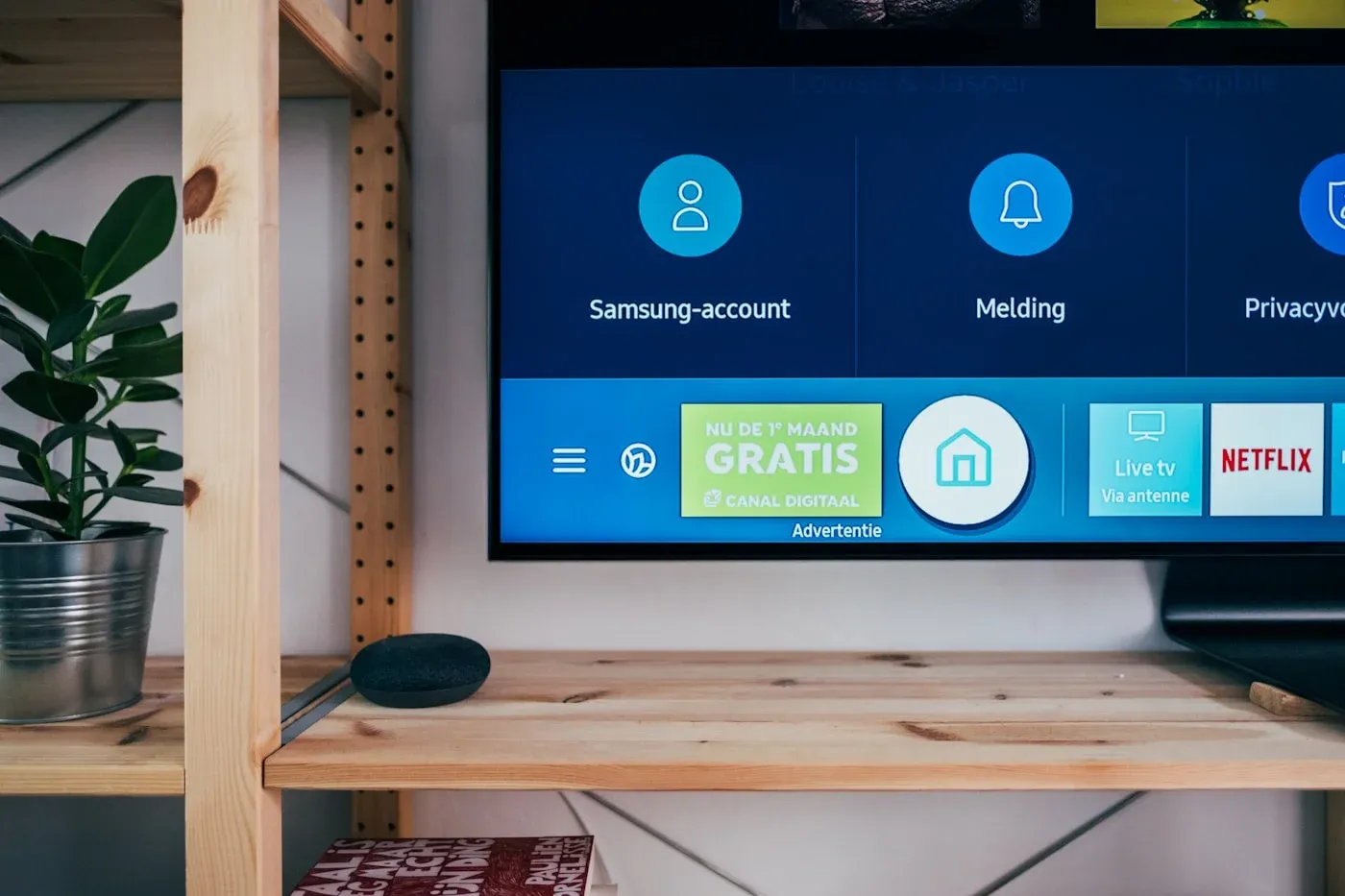
SetupConfiguring MaxConnect on your Smart TV
Get MaxConnect running on Samsung, LG and other Smart TV platforms with this step-by-step guide.
 Troubleshooting
Improve streaming quality on any connection
Tune your network, device and settings for the sharpest possible picture.
 Account
Managing your MaxConnect account and billing
How to update payment details, change plans and manage devices from your account.
Ready to watch?
Choose a plan and start streaming MaxConnect today.